
Customers
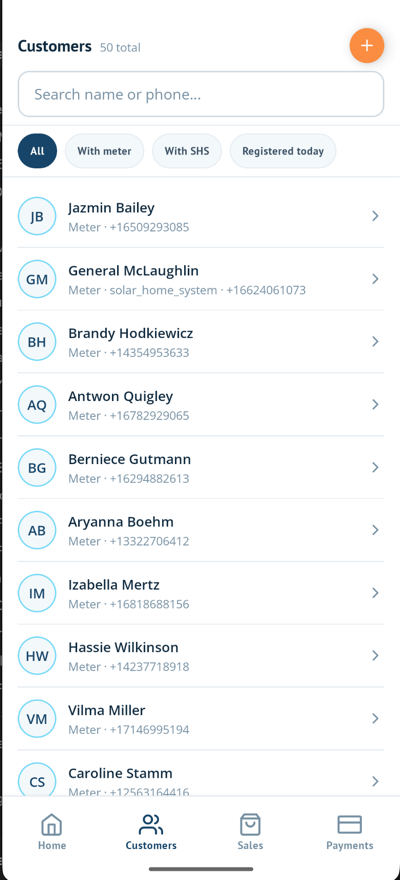
The Customers tab lists the customers in your mini-grid. You only see customers who live in the villages of the mini-grid your administrator assigned to you.
Search by name or phone number, or use the filters All, With meter, With SHS and Registered today. Tap a customer to see their devices, payments, documents and answers to onboarding questions, or to call them.
Registering a customer
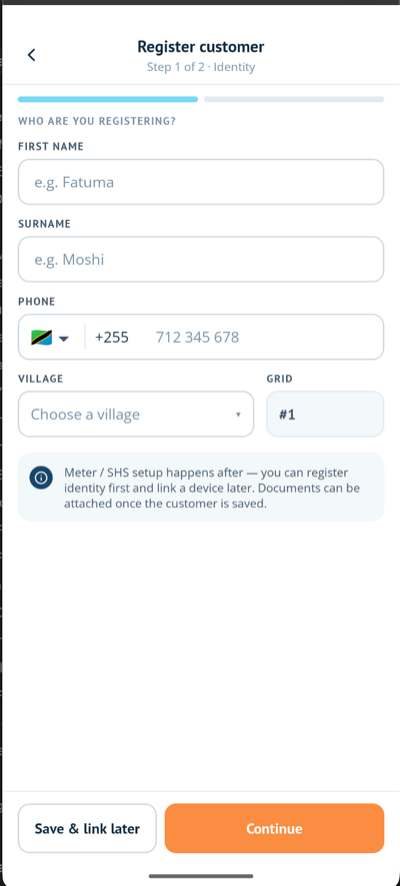
- Tap "➕" on the Customers tab (or Register customer on Home).
- Fill in the customer's details:
- First name, Surname, Phone and Village are required.
- Date of birth and Gender are optional.
- The app records the customer's location by GPS. If it cannot, tap Retry or Pick on map.
- Choose how to finish:
- Save & link later saves the customer only.
- Continue saves the customer and goes straight to assigning a meter.
After saving you can answer the company's onboarding questions and add documents for the customer.
NOTE
You can register customers without a connection. See Working offline.
Assigning a meter
- Open the customer and tap Assign meter.
- Choose the Manufacturer, Meter type and Serial number. Only meters that are not yet linked to a customer are listed.
- Choose the Tariff, Connection group and Connection type.
- Tap Assign meter.
Solar home systems are not assigned here; they are linked to the customer when you sell them.
Adding documents
A customer can have up to three documents, for example a contract or an ID document. Tap Take photo to photograph a paper document, or Upload to add a PDF or Word file of up to 5 MB. Choose the document type and save.